
If you purchased tickets through StubHub and have an open claim, your order numbers will be key to moving your case forward. Here is exactly where to find it, on both desktop and mobile.
Case Tips
How-To’s

If you currently have a pending StubHub claim through Chariot, we are currently moving forward with this case, and they have requested additional information. Per the email we sent out, we will need valid order numbers, purchase dates, and purchase amounts as requested by their counsel. If you have already submitted evidence that clearly shows order numbers, purchase dates, and purchase amounts, we'd still greatly appreciate it if you could submit them again. If you're not sure, it's always good to resubmit evidence to strengthen your claim.
This guide walks through the process of finding your order number(s) on both desktop and mobile, with screenshots at each step so you know exactly what to look for.
Your order number is a nine-digit number that appears on your receipt. It is not the same as a confirmation code or an event name. You will need the actual number itself, not a screenshot of your receipt. Once you have it, submit it through your Chariot dashboard at app.chariotclaims.com/sign-in.
Finding Your Order Number on the StubHub Mobile App
Step 1: Tap "Profile" in the bottom navigation bar.

Open the StubHub app and tap the Profile icon in the bottom right corner of your screen.
Step 2: Tap "My orders" under the Orders section.
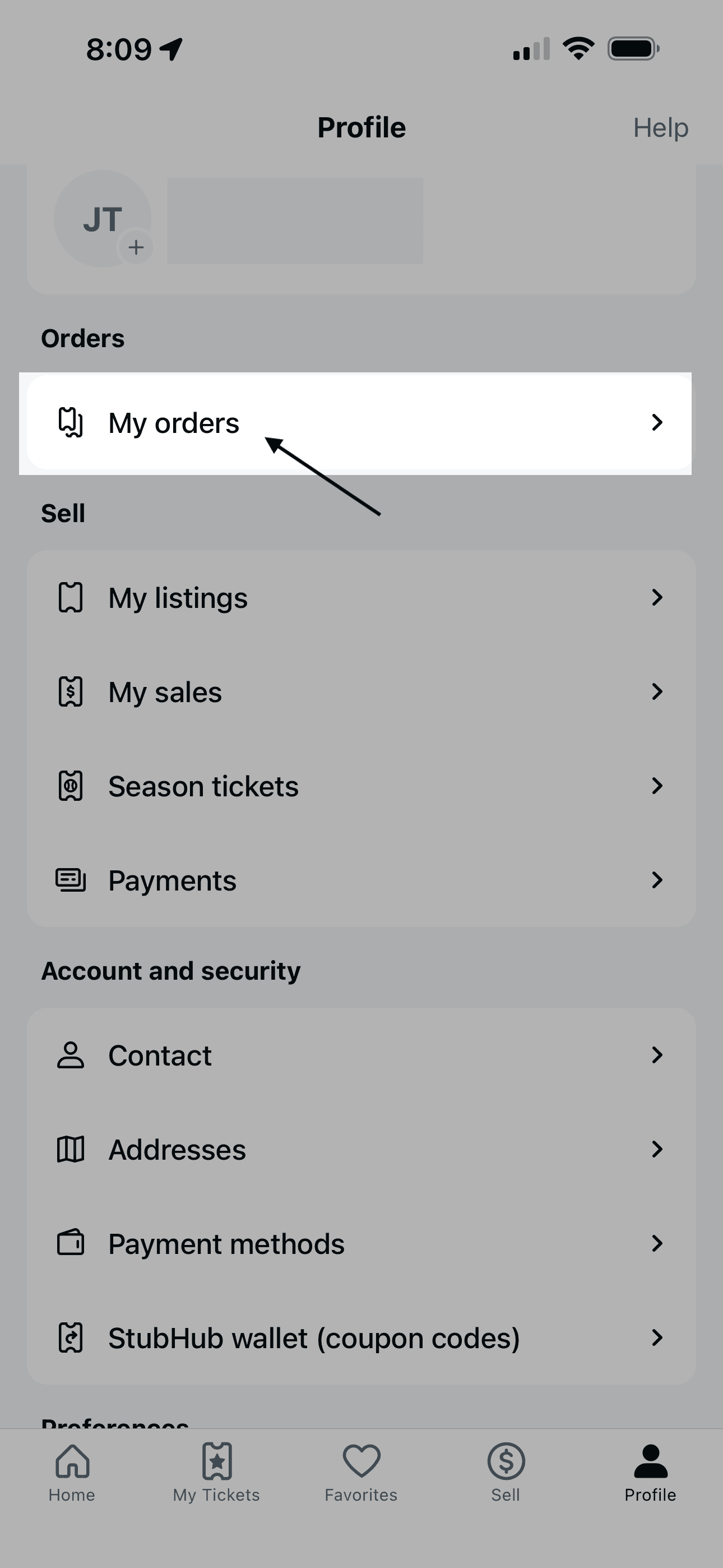
Your profile page will load with several sections. Under "Orders," tap "My orders" to view your purchase history.
Step 3: Tap the "Past" tab.
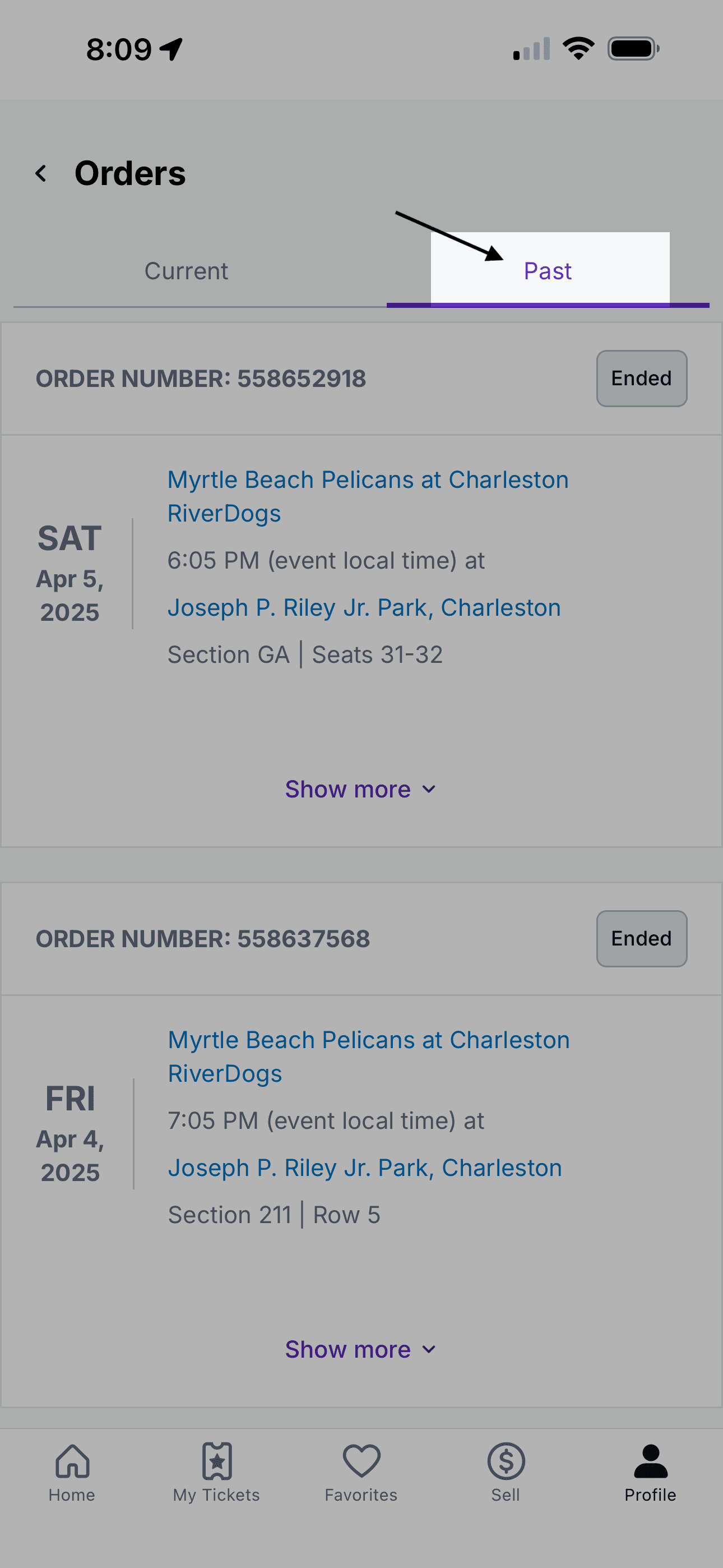
Your orders are organized into Current and Past tabs. Tap "Past" to see your completed purchases.
Step 4: Find your order and tap "Show more."
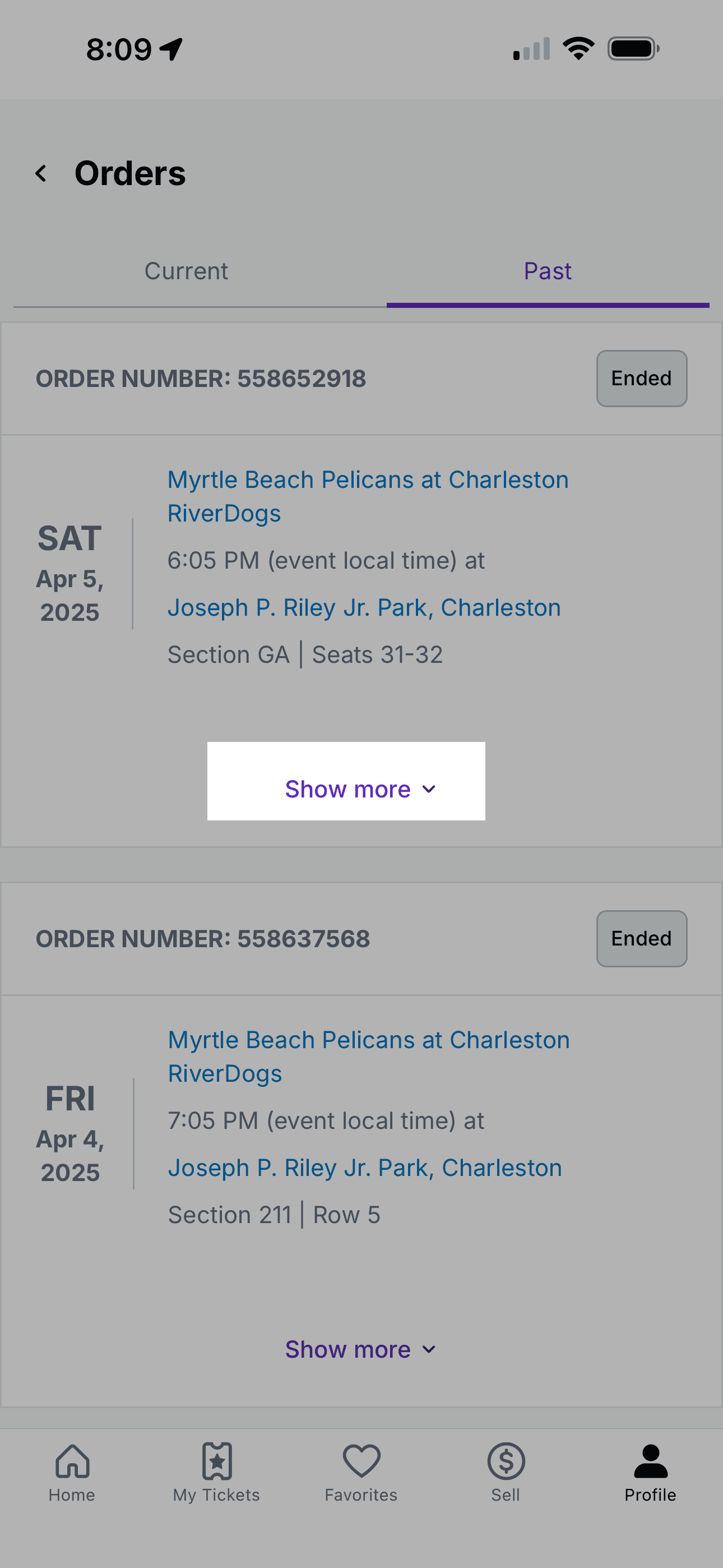
Scroll through your past orders to find the purchase you are looking for. Tap "Show more" beneath the event details to expand the order.
Step 5: Tap "View order receipt."
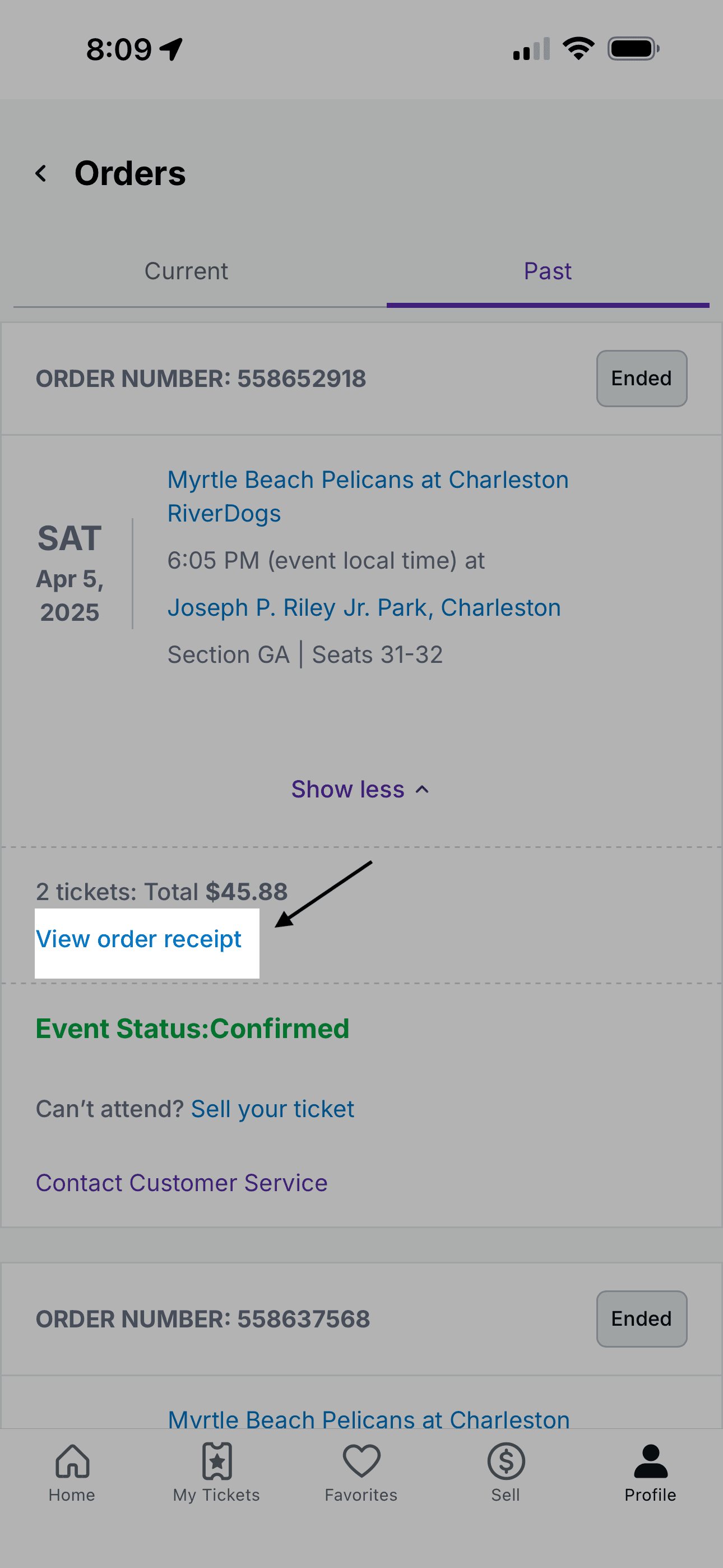
Once the order expands, you will see your total and a link that reads "View order receipt." Tap it to open your receipt.
Step 6: Your order number and order date are at the top of the receipt.
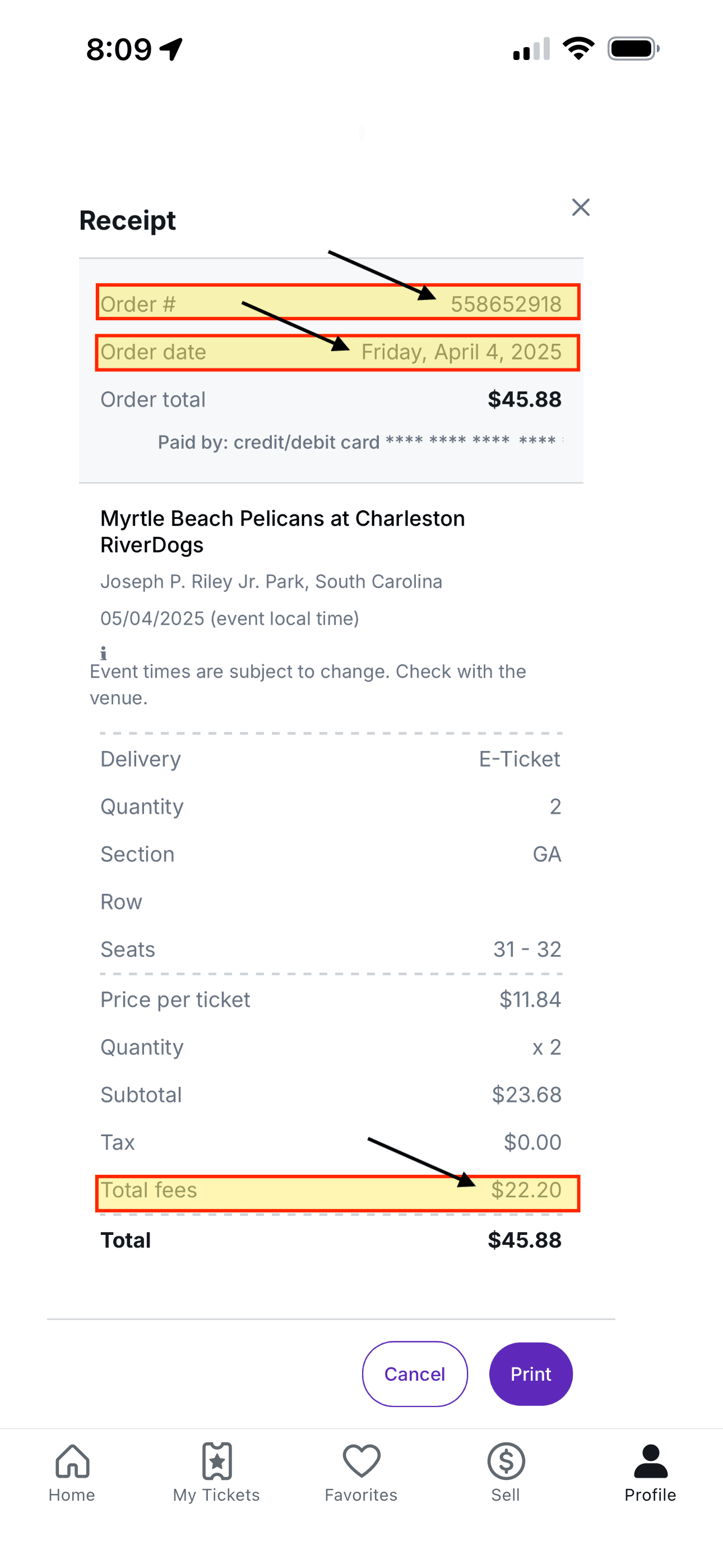
The receipt screen shows your Order # and Order date at the top. Your order number is the nine-digit number listed next to "Order #." You will also see the total fees charged, which will also be relevant to your claim.
Finding Your Order Number on Desktop
Step 1: Go to StubHub.com and click "Profile" in the top right corner.
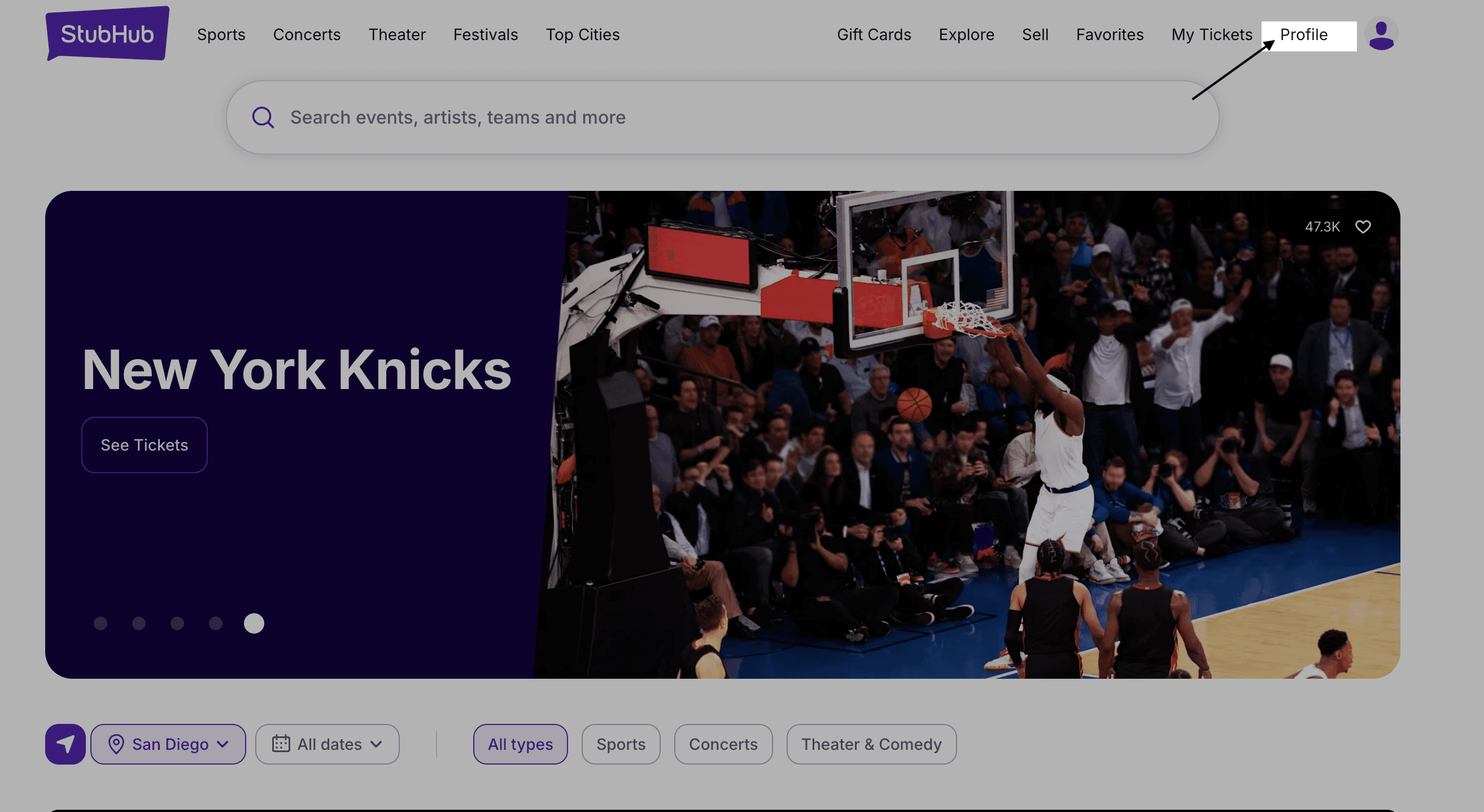
Once you are logged in, look for the Profile option in the upper right corner of the navigation bar. Click it to open your account menu.
Step 2: Select "Orders" from the left-hand menu.
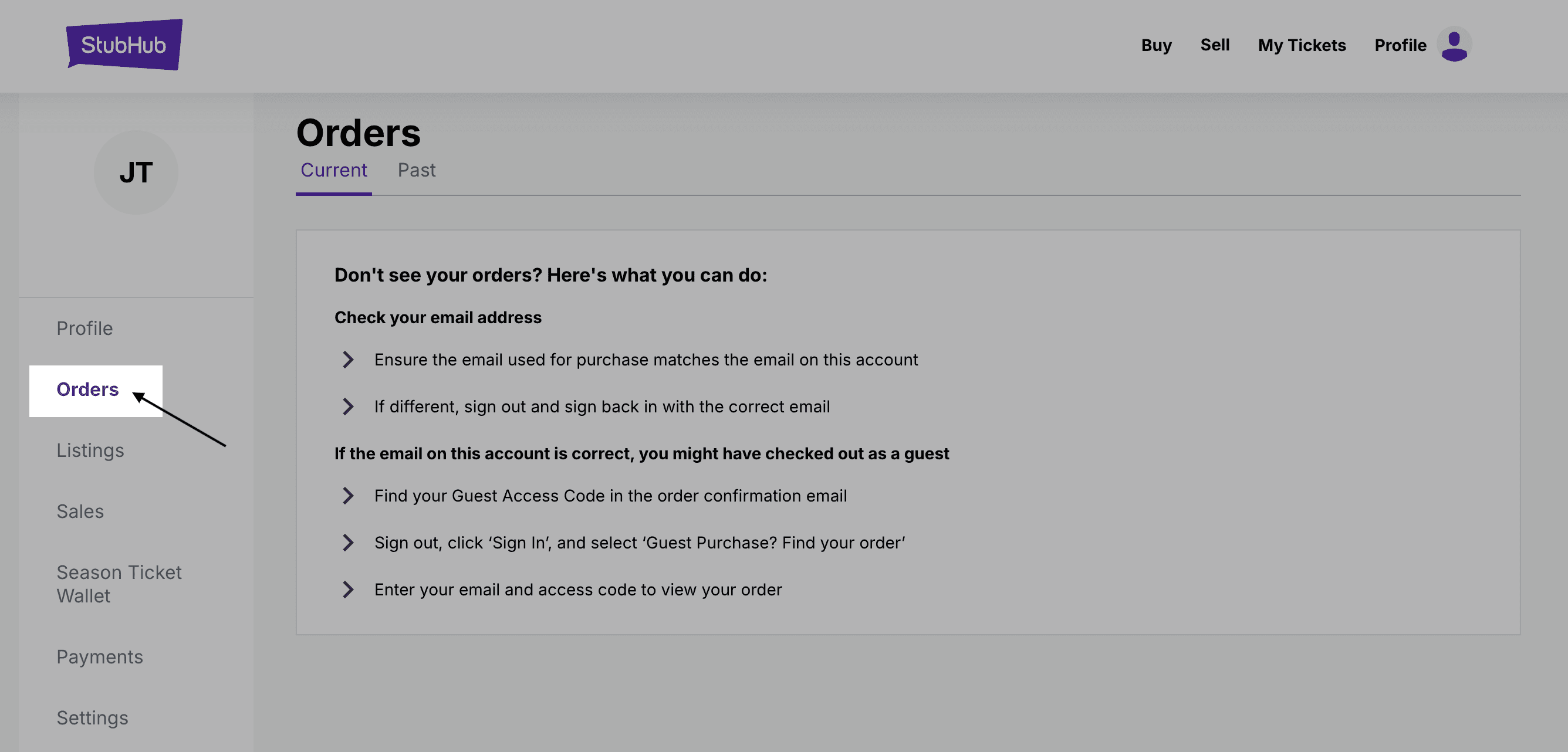
Your account profile will open. On the left side, you will see a navigation menu. Click "Orders" to view your purchase history.
Step 3: Click the "Past" tab.
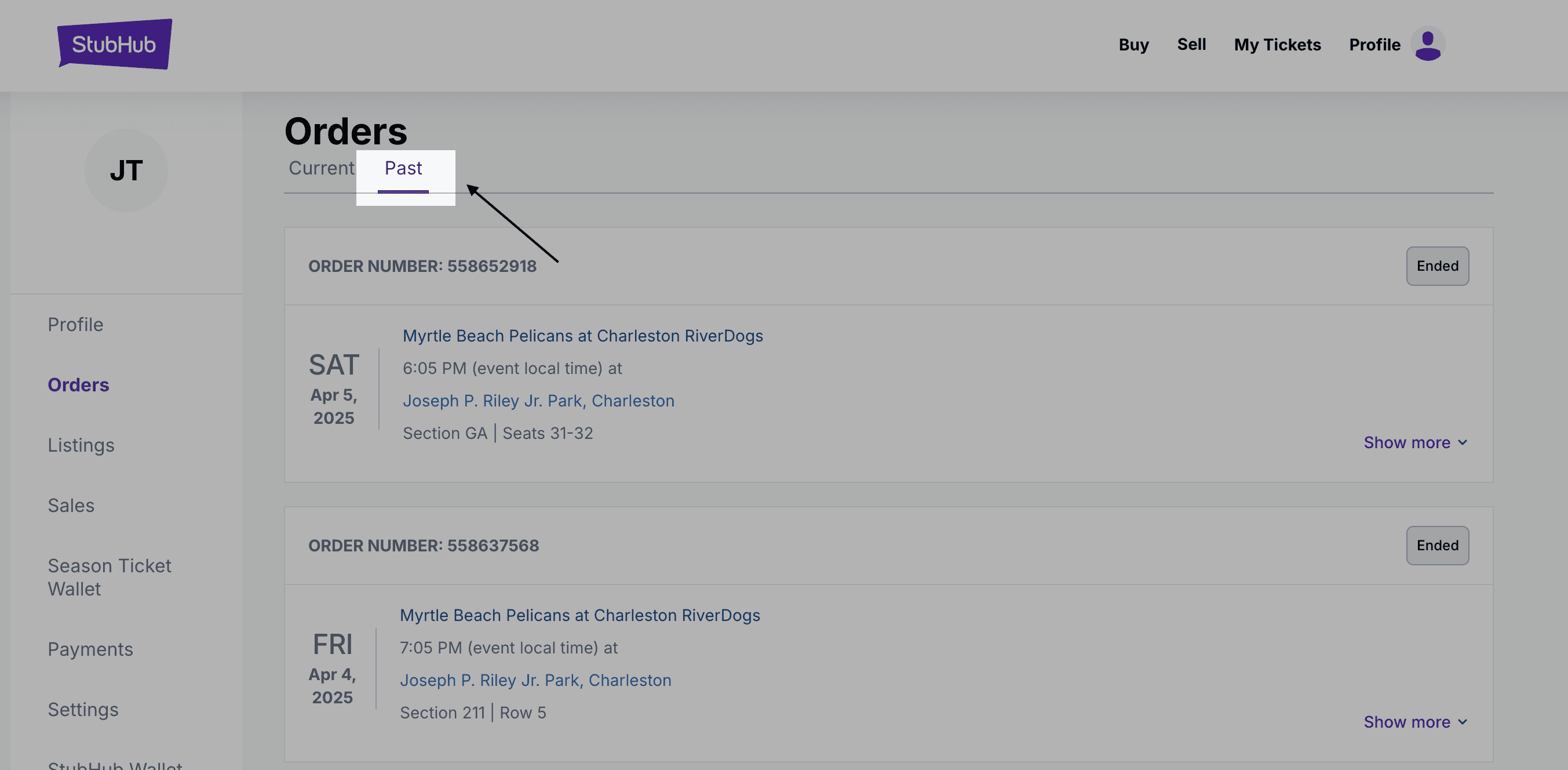
Orders are split into two tabs: Current and Past. Your StubHub ticket purchases will appear under the "Past" tab. Click it to see your order history.
Step 4: Find the order you are looking for and click "Show more."
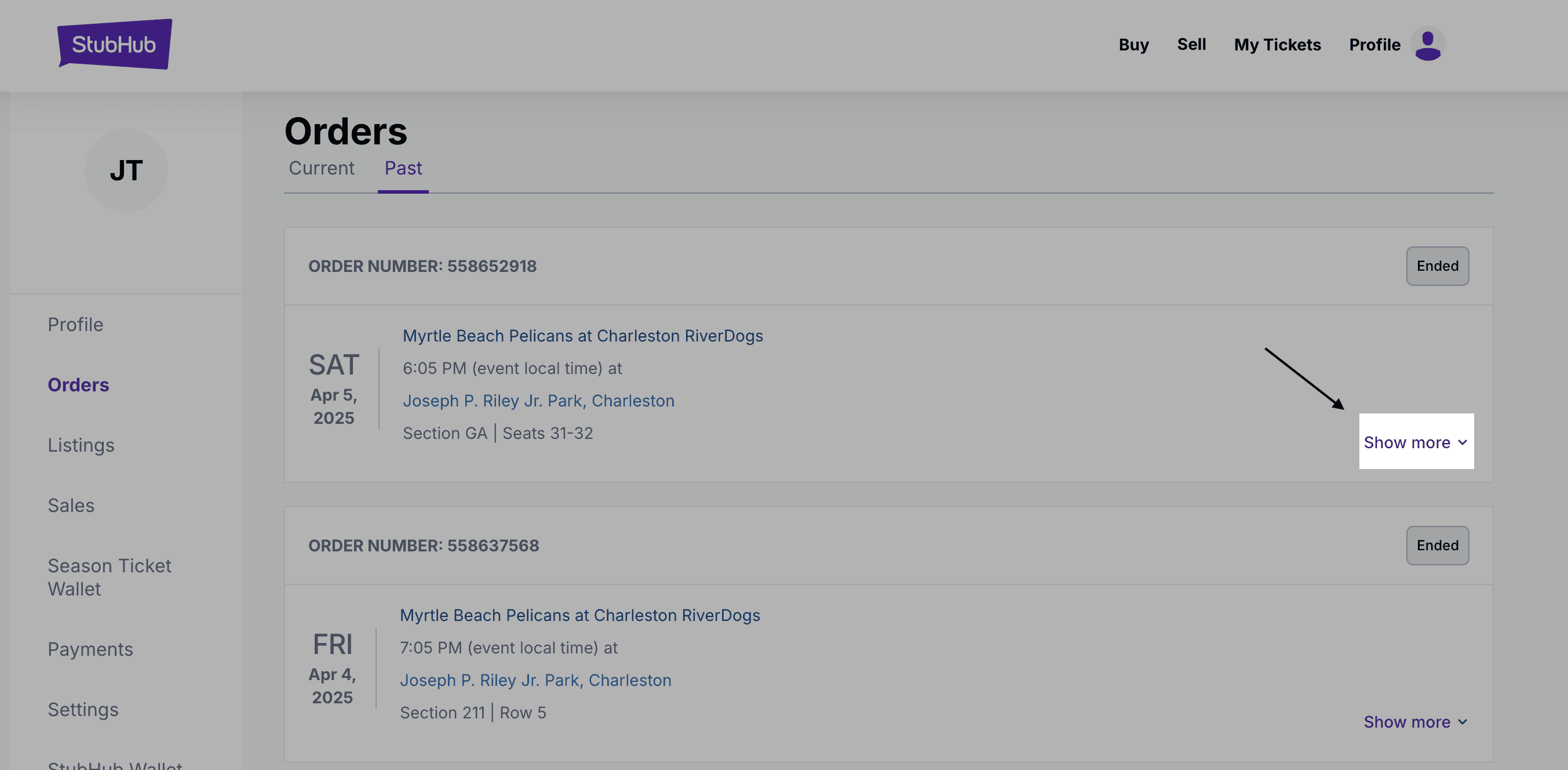
Each order appears as a card with the event name, date, and location. To see the full details and access your receipt, click "Show more" on the right side of the card.
Step 5: Click "View order receipt."
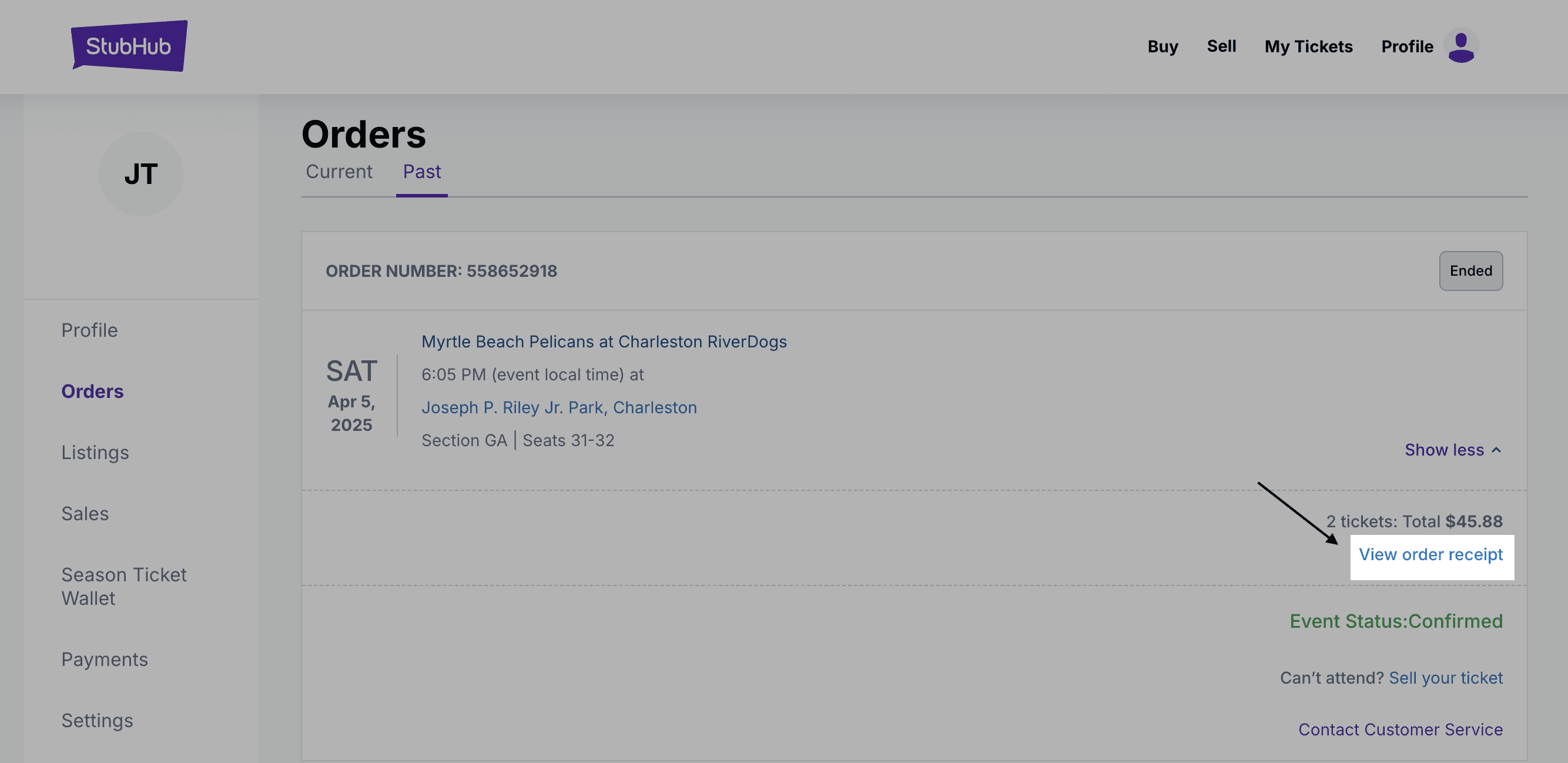
After expanding the order, you will see a line showing your total and a link that reads "View order receipt." Click it to open your receipt in a popup window.
Step 6: Your order number and order date are at the top of the receipt.
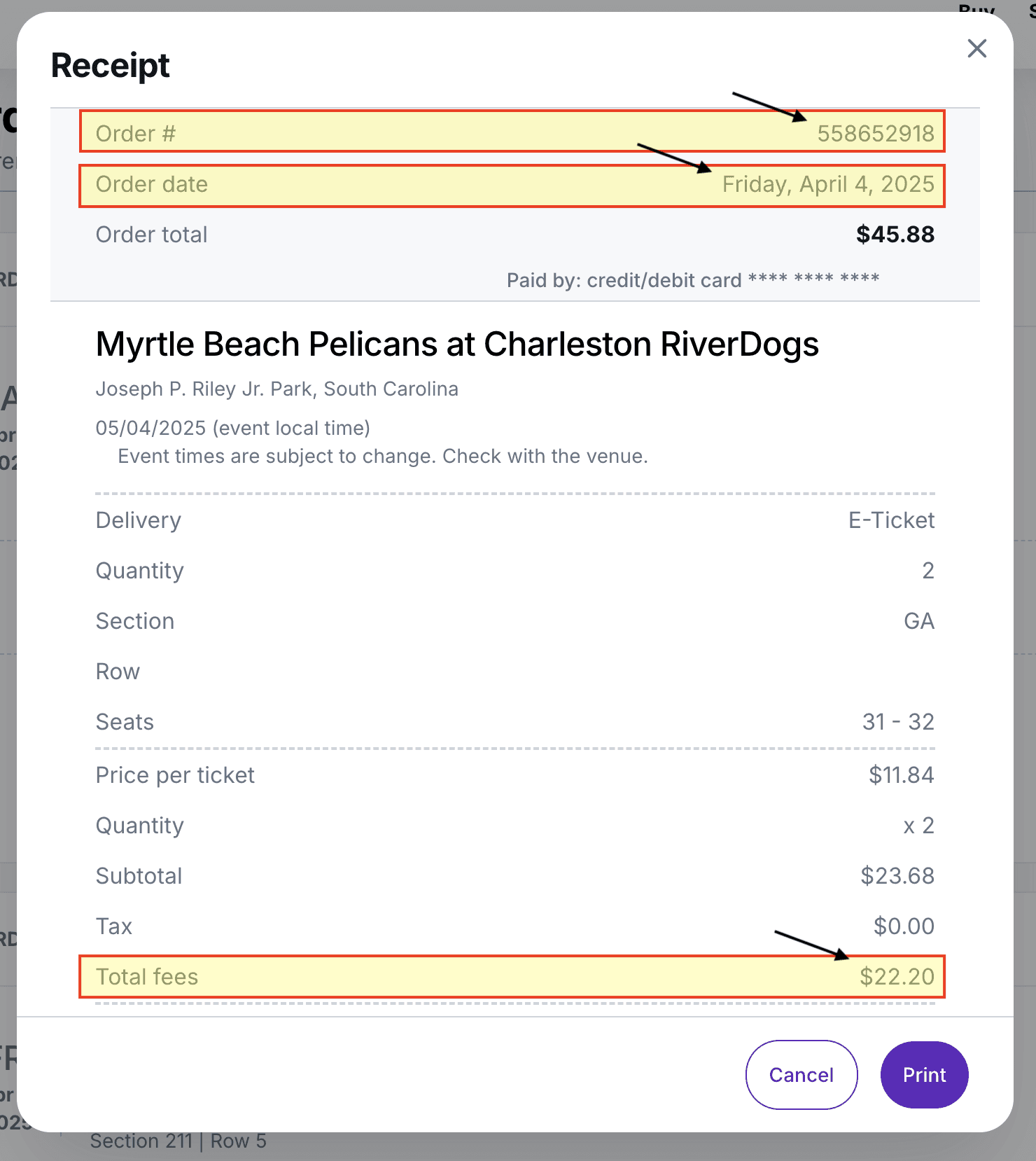
The receipt displays your Order # and Order date at the top, both highlighted in the example above. Your order number is the nine-digit number next to "Order #." Write it down or copy it directly. You will also want to note the order date and total fees paid.
Submit Your Order Number to Keep Your Claim Active
Once you have your order number(s), the next step is getting it to us. You can submit it directly through your Chariot dashboard👇
A few important things to keep in mind as you gather this information:
If you purchased tickets across multiple transactions, submit all of the order numbers you can find. More valid order numbers connected to your account strengthen your claim. If you are unsure whether a particular purchase falls within the relevant date range for this case, feel free to submit it anyway, and our team will sort it out.
If you have questions or run into any issues locating your order history, reach out to us at support@chariotclaims.com.
Case Tips
How-To’s


Chariot Claims does not provide legal advice. We are not attorneys. The information and services we provide should not be used as a substitute for legal advice. For specific legal concerns, we strongly recommend consulting with a qualified attorney. We expressly disclaim any liability related to actions taken or not taken based on our services or the information we provide.
Participation in settlement relief does not require signing up for third-party services. No-cost filing and support may be available from the claims administrator and class counsel. Those signing up for and authorizing Chariot Claims as their agent will receive comprehensive claim handling with the aim of securing the maximum settlement amount entitled.